FiveM · Advanced

Changing the FiveM artifact version

FiveM artifacts are the server binaries (fxserver) that drive the entire server. Upgrading to a newer version can fix bugs and add new feature support, or conversely – downgrading to an older version – can resolve compatibility issues with scripts.

What are FiveM artifacts?

Artifacts = compiled server binaries (fxserver). Each version is identified by a string in the format:

31039-784630184426ec767ea8bd4cd2f4d0bb7872e26c

The number before the dash is the build number (31039), after the dash is the git commit hash. This entire string goes into the FIVEM VERSION field in the Startup tab.

OK:When changing artifact versions, the reinstall ONLY overwrites the fxserver binaries. Your resources, server.cfg, txData and database remain completely untouched.

1Stop the server

Before changing anything, stop the server. On the Terminal tab click the red Stop button and wait until the status changes to Offline. The reinstall cannot be run while the server is running.


2Check the current version

Go to the Startup tab. In the Variables section find the FIVEM VERSION field – the currently installed version is shown in the value box. It is the full build identifier in the format ČÍSLO-HASH, for example:

20770-8dbc0e04af08a7902a198653b8463f9c87f19d71
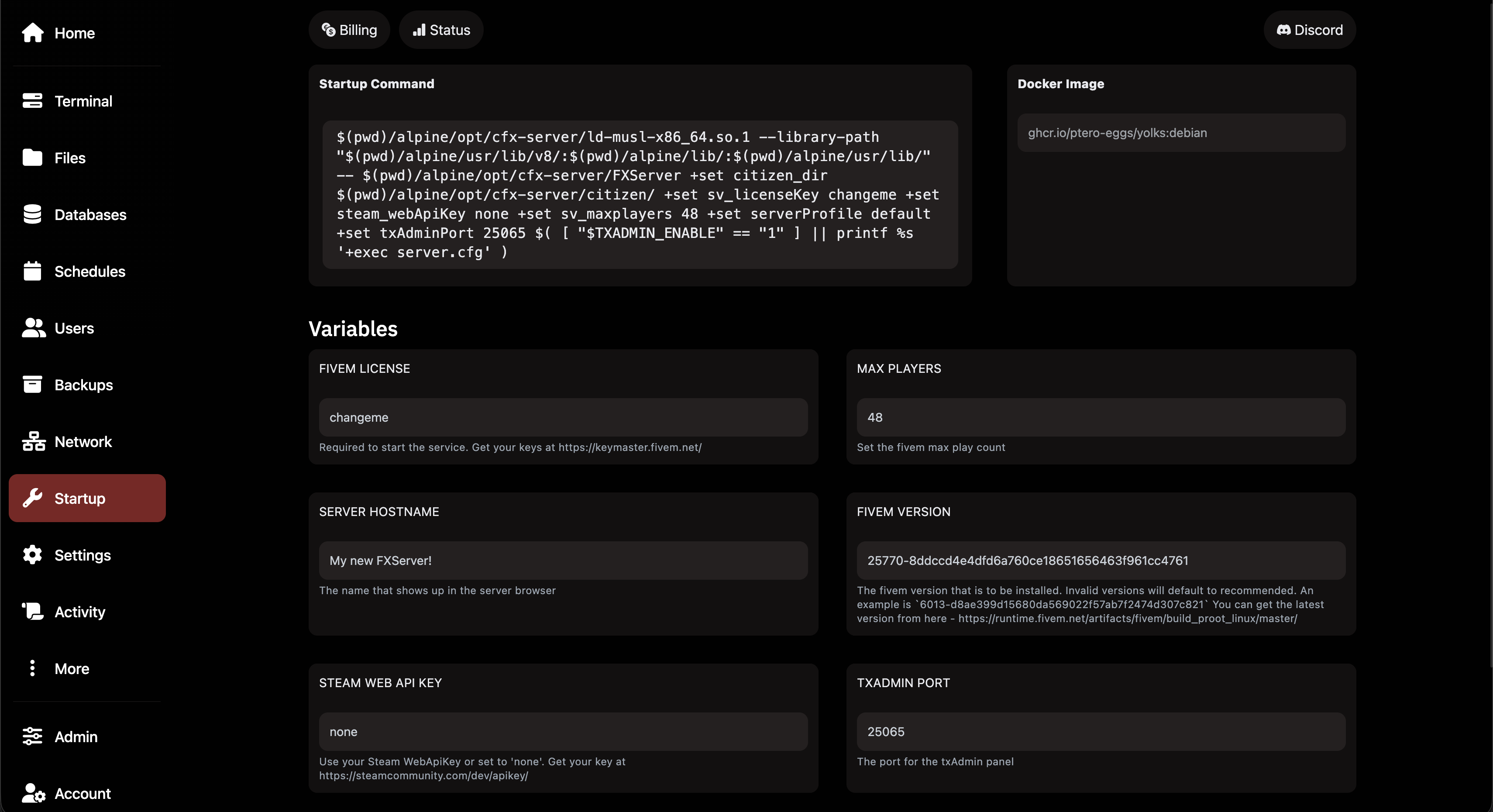
Startup tab – list of variables: FIVEM LICENSE (changeme), MAX PLAYERS (48), SERVER HOSTNAME (My new FXServer!), FIVEM VERSION (long hash identifier), STEAM WEB API KEY (none), TXADMIN PORT (25065). At the top Startup Command and Docker Image.
Startup → Variables: the FIVEM VERSION field shows the currently configured artifact version as the full NUMBER-HASH string

3Choosing a new version on the artifacts page

Open the FiveM artifacts page in your browser:

runtime.fivem.net/artifacts/fivem/build_proot_linux/master/

The page shows a list of available builds. At the top are two buttons – blue LATEST RECOMMENDED and red LATEST OPTIONAL. Below them is a chronological list of specific builds with their release dates.
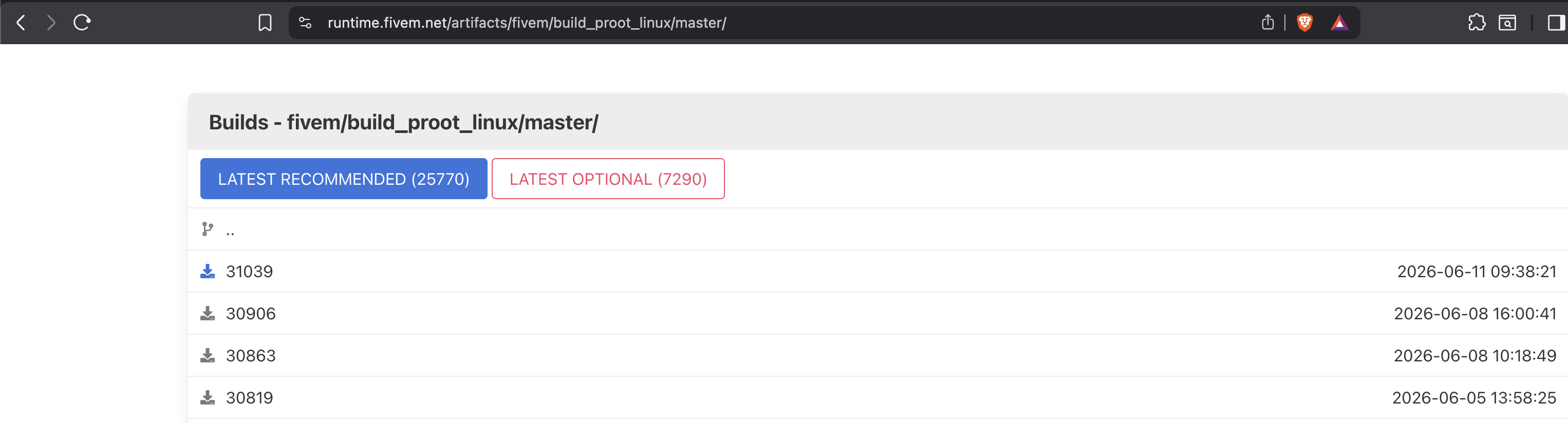
Browser at runtime.fivem.net/artifacts/fivem/build_proot_linux/master/ – blue LATEST RECOMMENDED (25770) button and red LATEST OPTIONAL (7290) button at top. Below a list of builds: 31039 from 2026-06-11, 30906, 30863, 30819.
Artifacts page: LATEST RECOMMENDED is the most stable version, the list below shows all available builds with dates

How to get the build identifier?

Right-click on the link of the desired build (or on the LATEST RECOMMENDED button) and choose Copy Link Address.
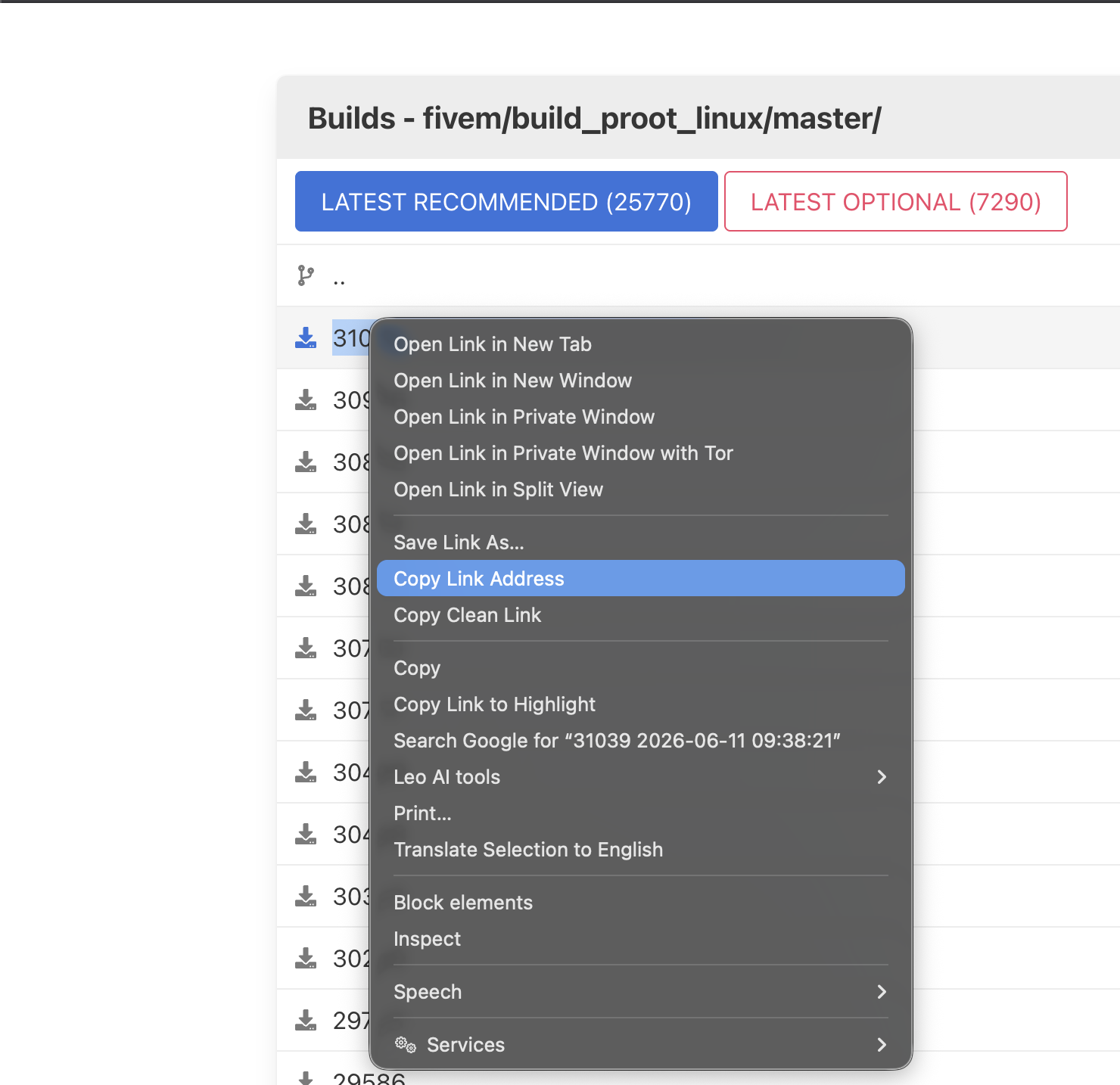
Right-click on build 31039 link on the artifacts page – browser context menu shown with Copy Link Address highlighted.
Right-click the desired build → Copy Link Address – copies the full URL with the build identifier to clipboard

The copied URL looks like this:

https://runtime.fivem.net/artifacts/fivem/build_proot_linux/master/31039-784630184426ec767ea8bd4cd2f4d0bb7872e26c/fx.tar.xz

The build identifier you need is the part between master/ and /fx.tar.xz:

31039-784630184426ec767ea8bd4cd2f4d0bb7872e26c

Browser address bar with the full URL highlighted: https://runtime.fivem.net/artifacts/fivem/build_proot_linux/master/31039-784630184426ec767ea8bd4cd2f4d0bb7872e26c/fx.tar.xz – the build identifier is visible in the URL.
Copied URL: the build identifier is the part of the address between master/ and /fx.tar.xz

4Entering the new version in FIVEM VERSION

Switch back to the Pterodactyl panel, Startup tab. In the FIVEM VERSION field paste the copied build identifier. Delete the old value and paste the new string – it must be entered exactly, without the URL prefix or /fx.tar.xz.
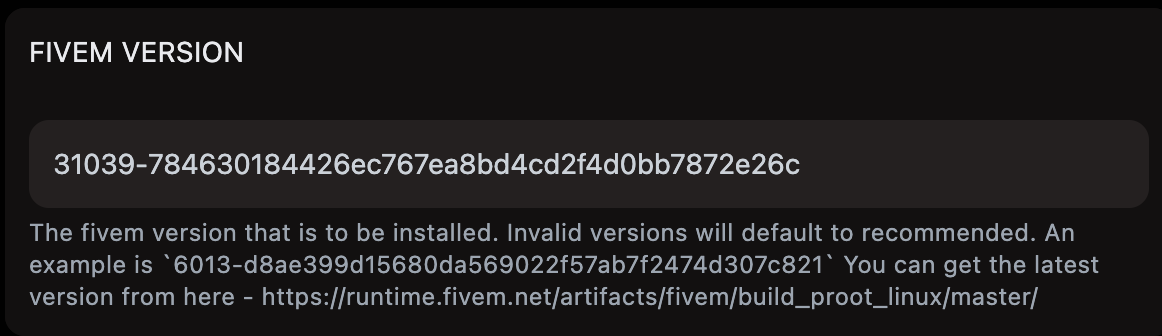
⚠️ Pozor:Only the identifier belongs in the field, e.g. 31039-784630184426ec767ea8bd4cd2f4d0bb7872e26c – not the full URL. An invalid value causes the recommended version to be downloaded automatically.
Close-up of the FIVEM VERSION field in the Startup tab – value: 31039-784630184426ec767ea8bd4cd2f4d0bb7872e26c. Below the field description: The fivem version that is to be installed. Invalid versions will default to recommended. An example is 6013-d8ae399d15680da569022f57ab7f2474d307c821. You can get the latest version from the artifacts URL.
FIVEM VERSION field with the newly pasted build identifier 31039-784630...e26c – only NUMBER-HASH, no URL

The field saves automatically when you leave it (click elsewhere). No Save button needed.


5Reinstall – downloading the new version

For the configured version to actually be downloaded and installed, you need to run Reinstall Server. Go to the Settings tab and click the red Reinstall Server button.
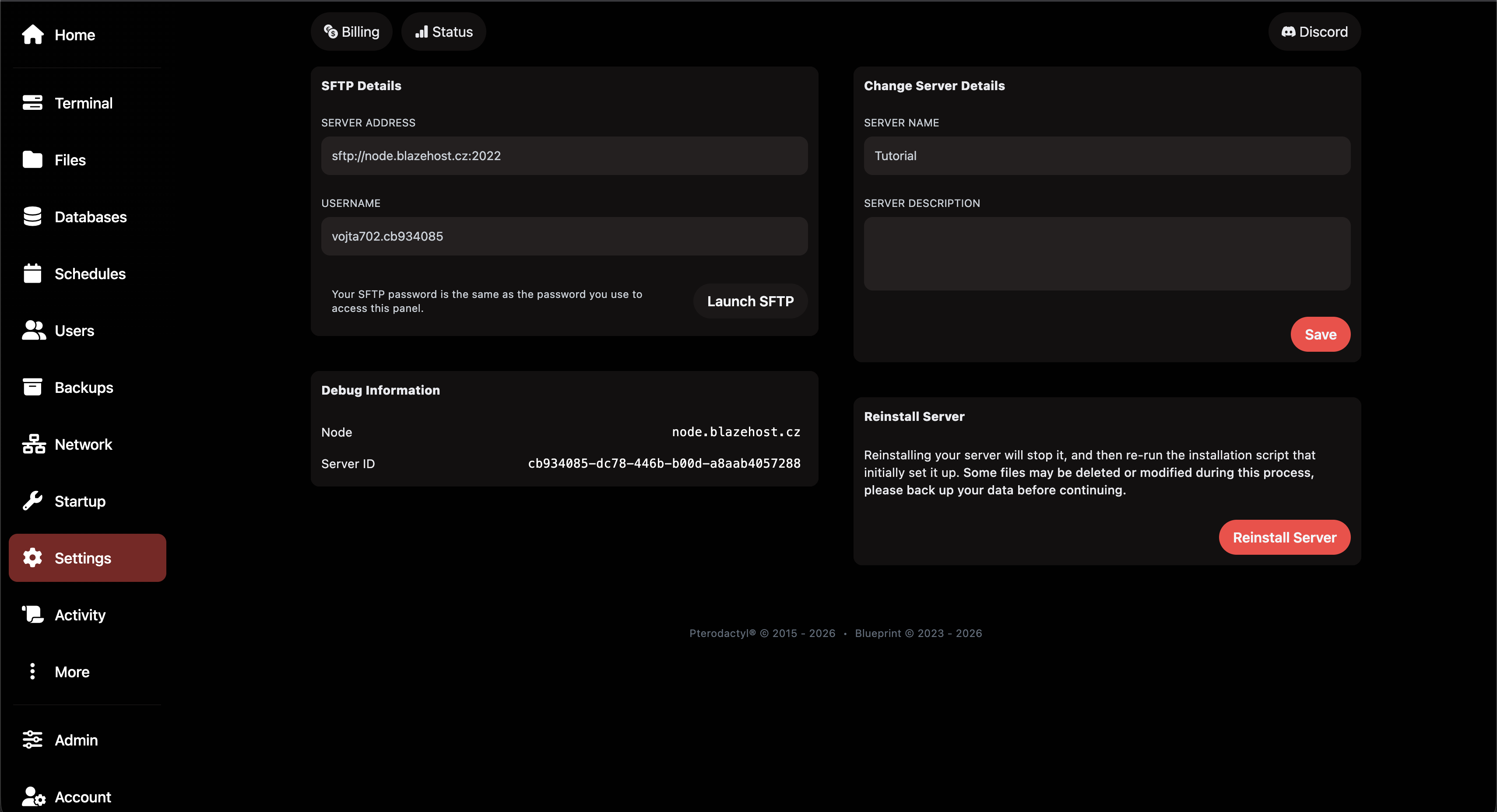
Settings tab – left side SFTP Details (sftp://node.blazehost.cz:2022, username vojta702.cb934085, Launch SFTP button) and Debug Information (Node: node.blazehost.cz, Server ID). Right side Change Server Details (Server Name: Tutorial) and Reinstall Server section with red Reinstall Server button.
Settings: click the red Reinstall Server button – starts downloading the new artifact version

A confirmation dialog appears. Click Yes, reinstall server.
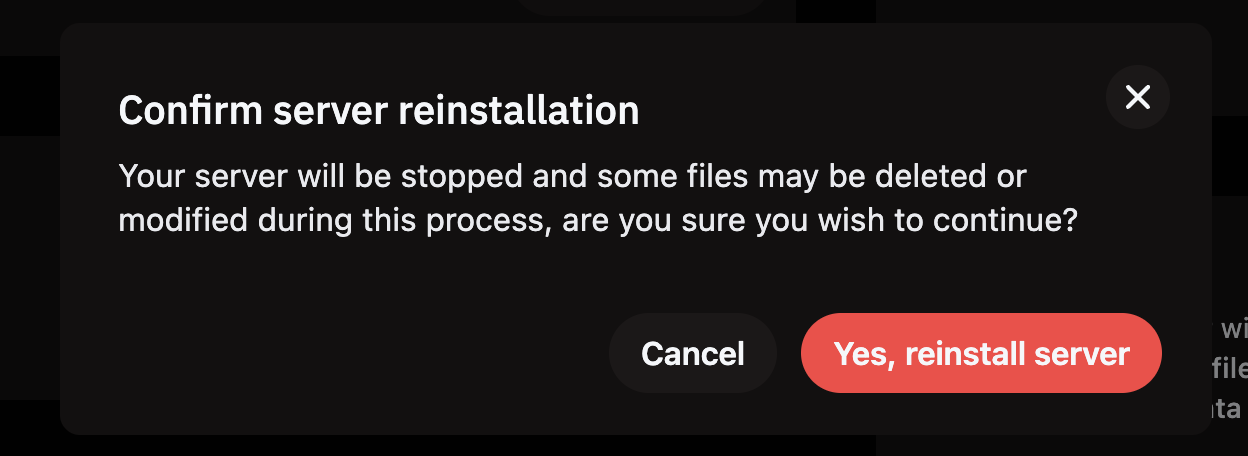
Confirm server reinstallation dialog – text: Your server will be stopped and some files may be deleted or modified during this process, are you sure you wish to continue? Cancel and Yes, reinstall server buttons.
Reinstall confirmation – when changing artifact versions ONLY the fxserver binaries are overwritten, server data remains untouched
OK:Reinstallation when changing artifact versions overwrites ONLY the fxserver binaries (files in the alpine folder). Your resources folder, server.cfg, txData and the entire database remain completely untouched.

After confirming, go to the Terminal tab and watch the log. Downloading the new version takes 1–3 minutes. Once done, the server will start automatically via txAdmin.


6Verify the new version

After the server starts, type this command in the console to display the version:

version

The result shows the build number (e.g. v4.0.0-31039). If the number matches the build you entered, the installation was successful.

💡 Tip:If the server doesn't start, check the FIVEM VERSION field in the Startup tab – the value must be the exact build identifier without spaces and without the URL.

Latest Recommended vs. Latest Optional

LATEST RECOMMENDED

Most stable version vetted by the community. Recommended for production servers. Less frequent updates but higher reliability. Used by most public servers.

LATEST OPTIONAL

Latest build – may contain the freshest fixes but also untested changes. Suitable for test environments or if you need a specific fix immediately.

💡 Tip:If you're unsure which to choose, always go with LATEST RECOMMENDED. The build number in parentheses (e.g. 25770) tells you how current the recommended version is.

Still stuck?

Our support team is happy to help.