Pterodactyl is a web-based game panel through which you manage your server on BlazeHost. This guide walks through every tab – what you find there and how to use it.
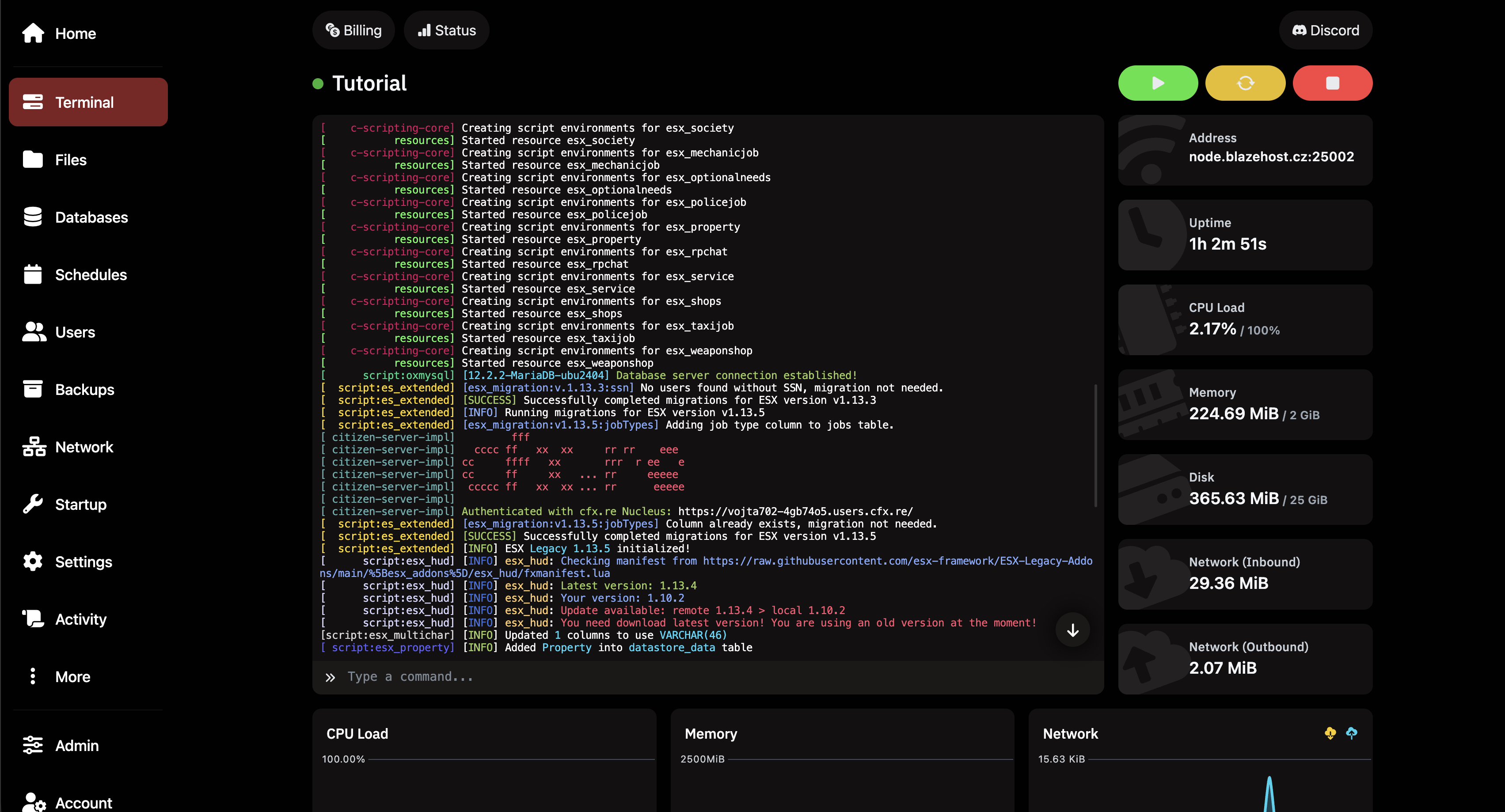
Terminal tab – server Tutorial is running (Online), console shows live ESX resource loading logs. Top right stats: CPU 2.17%, memory 224.69 MiB / 2 GiB, disk 365.63 MiB / 20 GB, network 29.36 MiB in / 2.07 MiB out. Connection address: node.blazehost.cz:25002, uptime 1h 2m 51s.
Panel overview: Terminal tab with running server, live logs and resource usage statistics
Terminal
The main tab – here you see the live server log, enter console commands and manage the server state (Start / Stop / Restart / Kill). The right panel shows current resource usage statistics.
Live logConsole shows all server output in real time – resource loading, errors, player actions.
Enter commandClick the input below the log and type a command (e.g. restart chat). Confirm with Enter.
CPU / RAM / DiskOn the right you see current usage: the example Tutorial server shows CPU 2.17%, memory 224 MiB, disk 365 MiB.
Address / UptimePlayer connection address (node.blazehost.cz:25002) and how long the server has been running without restart.
💡 Tip:Kill immediately terminates the process – use only as a last resort if Stop doesn't respond. Kill may cause loss of unsaved data.
Files
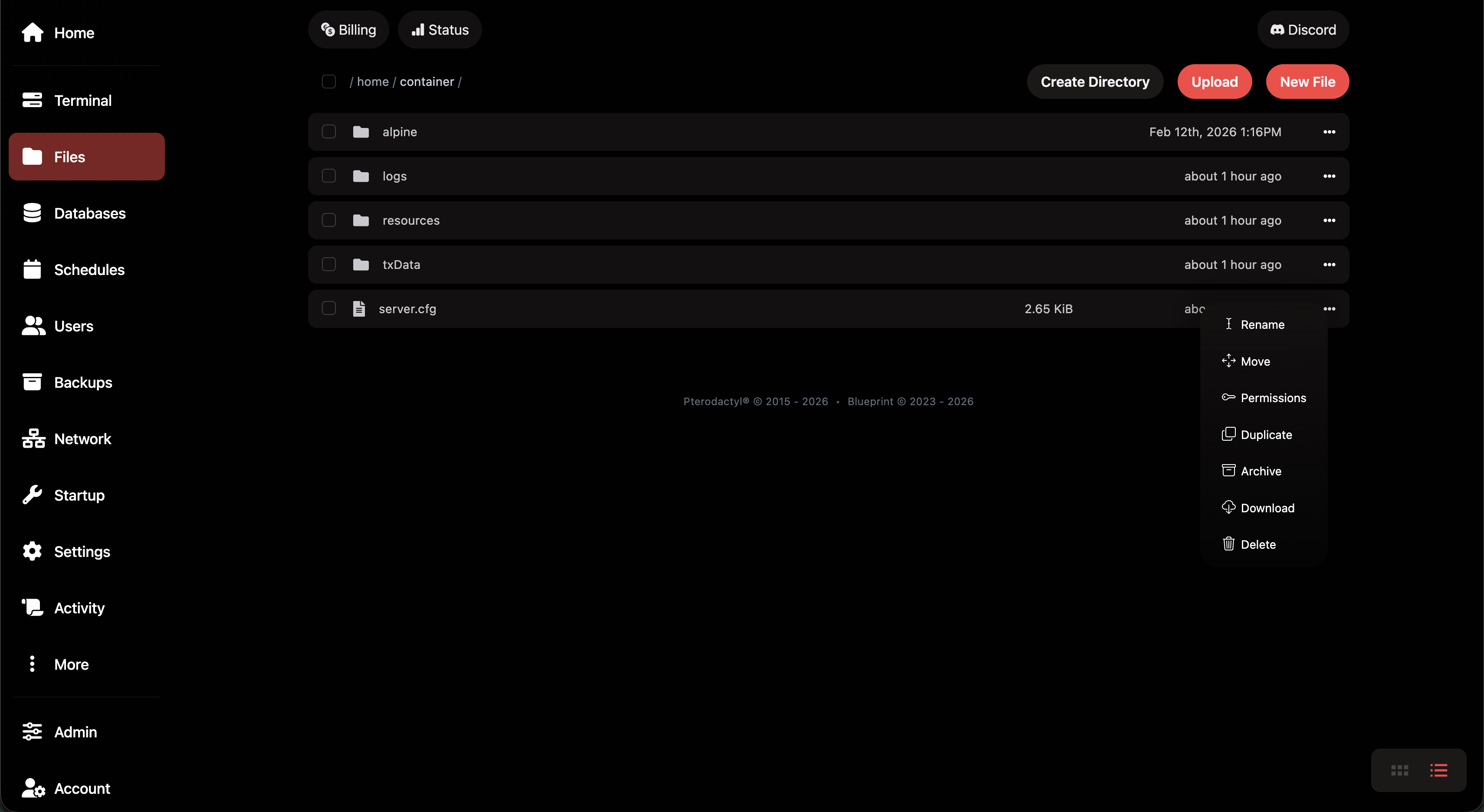
Server file manager. Shows the contents of /home/container/ – the FiveM server root directory with folders alpine, logs, resources, txData and file server.cfg.
Files tab – root directory /home/container/ with folders alpine (Feb 12th 2026), logs, resources, txData and file server.cfg (2.65 KiB). Context menu open on server.cfg showing options: Rename, Move, Permissions, Duplicate, Archive, Download, Delete.
Files: clicking the three dots (···) or right-clicking a file opens a context menu with actions – Download, Rename, Delete and more
Open fileClicking a filename opens the inline editor directly in the browser – no need to download and re-upload.
Upload / Drag & DropDrag files directly into the browser or click Upload. Entire folders can be uploaded too.
SearchThe magnifying glass icon top right opens search within the current directory.
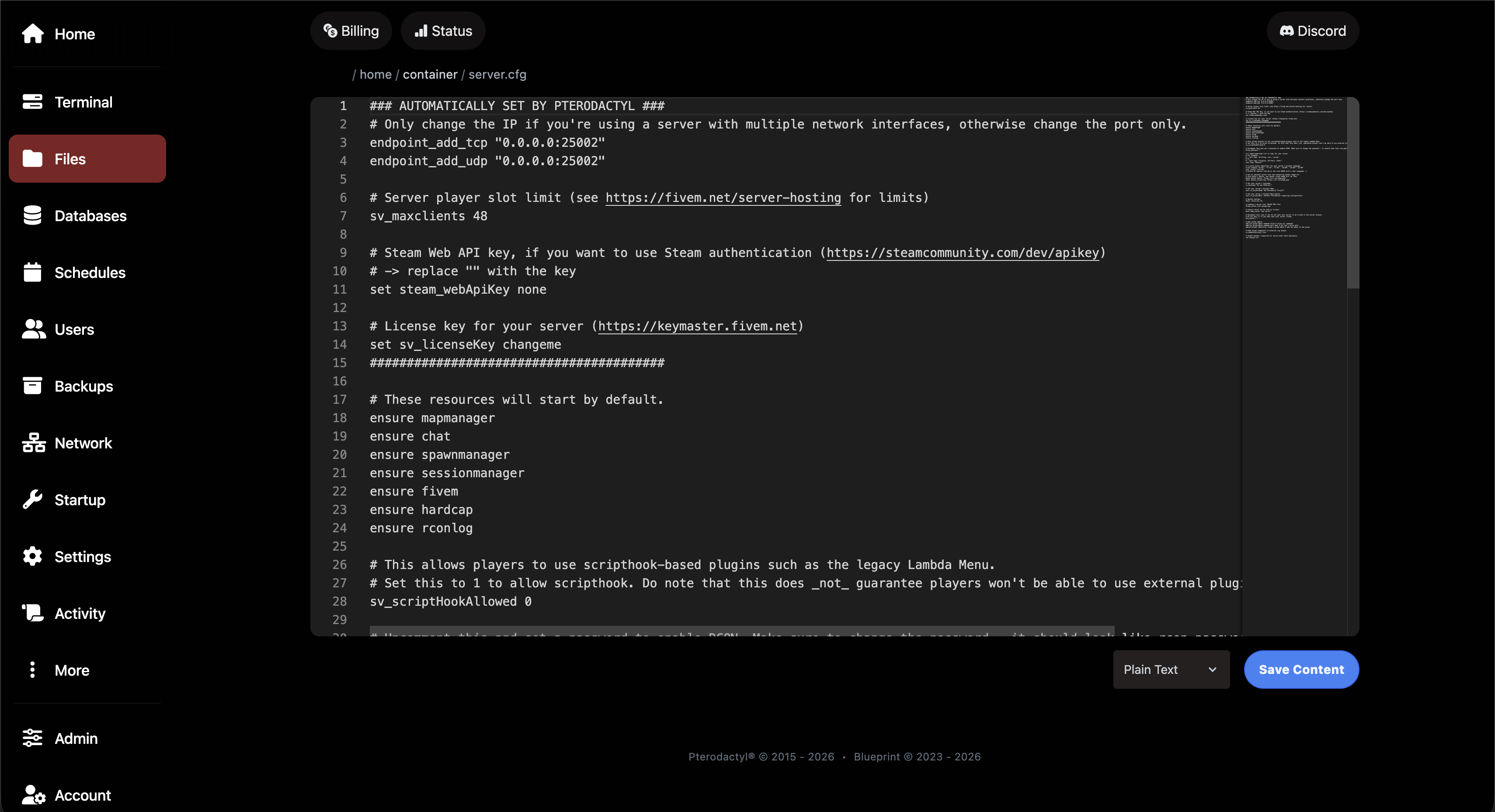
The inline editor supports syntax highlighting for .cfg, .lua, .js and other formats. Save changes with the Save Content button or Ctrl+S.
Files tab – server.cfg open in the inline editor. Content: endpoint_add_tcp/udp 0.0.0.0:25082, sv_maxclients 48, steam_webApiKey none, sv_licenseKey changeme, ensure nopixellib, chat, spawnmanager, mysql-async, fivem, hardcap, rconlog, sv_scriptHookAllowed 0. Save Content button on the right.
Files: inline editor with server.cfg open – save edits with the Save Content button or Ctrl+S
💡 Tip:To access files via FTP client (FileZilla, WinSCP) use the Settings tab → Launch SFTP. Login credentials (host, port 2022, username) are also found in Settings.
Databases
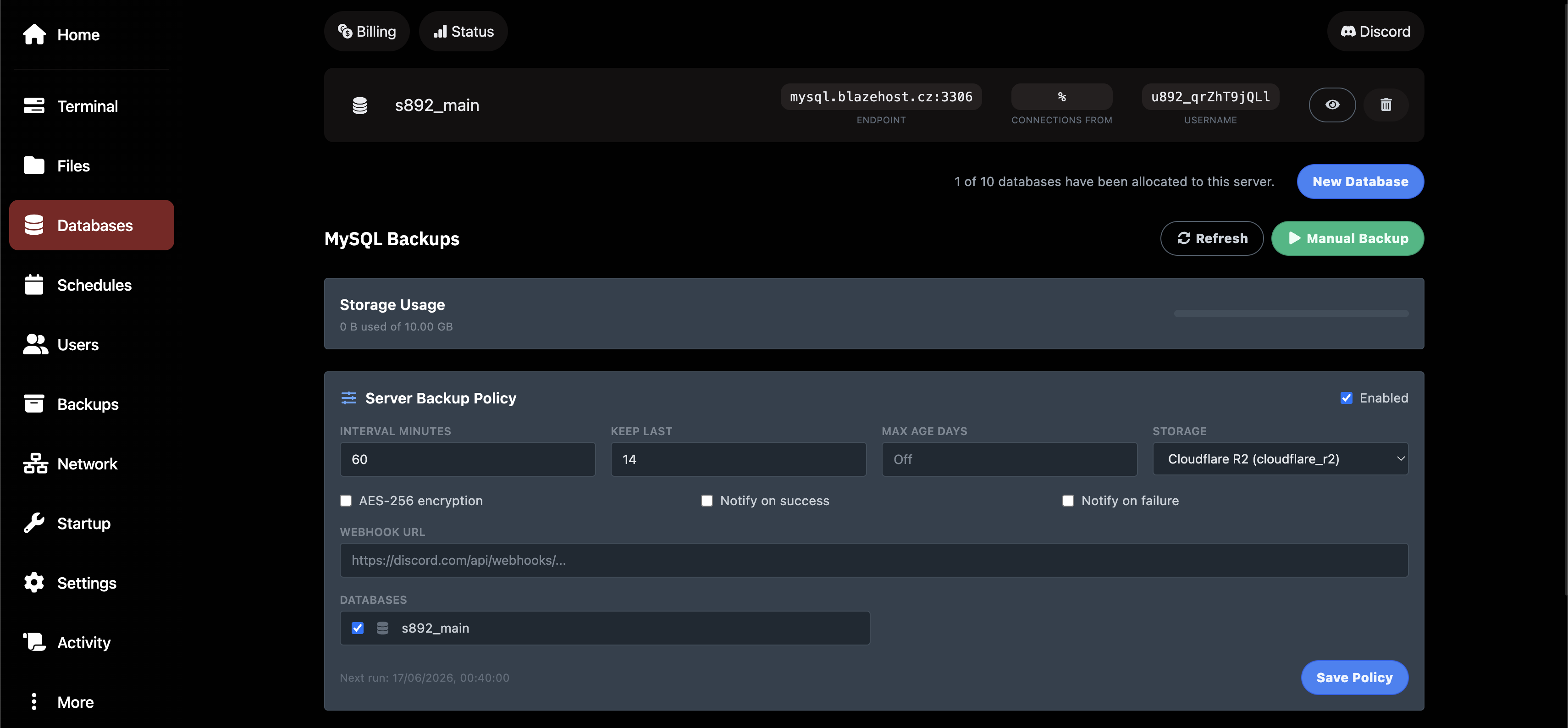
Management of MySQL databases assigned to the server. Each server can have up to 10 databases. The panel shows name, endpoint, username and access IP addresses.
Databases tab – database s892_main with endpoint mysql.blazehost.cz:3306, access from % (anywhere), username u892_qrZhT9jQLl. Icons for revealing password and deletion. Text: 1 of 10 databases have been allocated to this server. Below MySQL Backups section – Server Backup Policy: Interval 60 min, Keep Last 14, Storage Cloudflare R2, Discord webhook URL, s892_main checkbox checked, next run 17/06/2026 00:40:00.
Databases: database s892_main on mysql.blazehost.cz:3306 and automatic backup policy with Cloudflare R2 storage
Endpointmysql.blazehost.cz:3306 – this address goes into server.cfg as the database host.
PasswordClick the eye icon to reveal the database password. Connection string for oxmysql: mysql://UZIV:[email protected]/DATABAZE
MySQL BackupsBlazeHost automatically backs up databases to Cloudflare R2. Interval 60 minutes, keeps last 14 backups. Backups are encrypted (AES-256).
New databaseThe New Database button creates a new database with a generated name and password.
Schedules
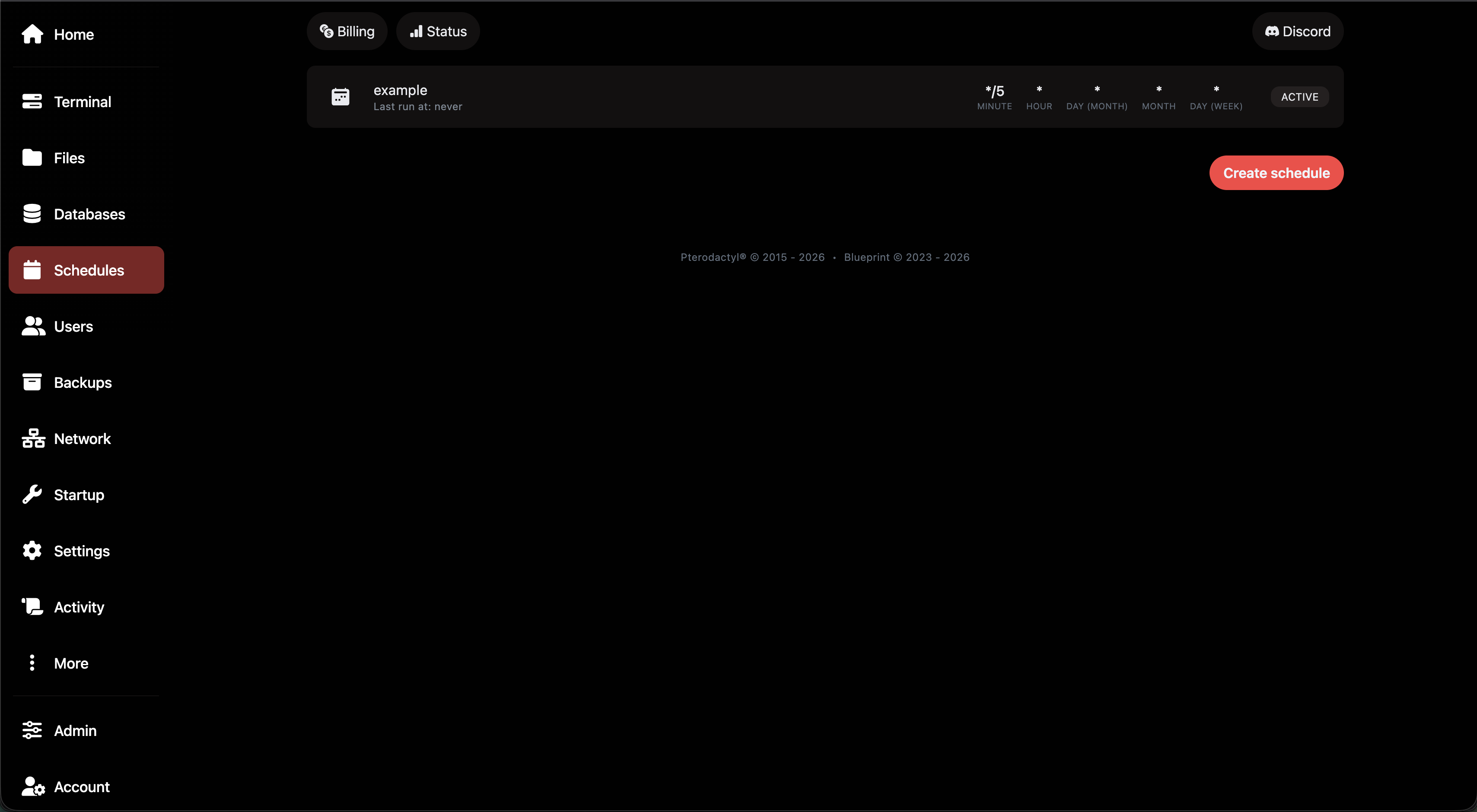
Schedule automatic tasks using Cron expressions – repeated commands, server restarts or creating backups at a set time.
Schedules tab – overview of plans. Schedule example with status ACTIVE, Cron expression: */5 MINUTE * HOUR * DAY(MONTH) * MONTH * DAY(WEEK), Last run at: never. Create schedule button.
Schedules: overview – schedule example with ACTIVE status and Cron expression */5 (every 5 minutes)
Creating a new schedule
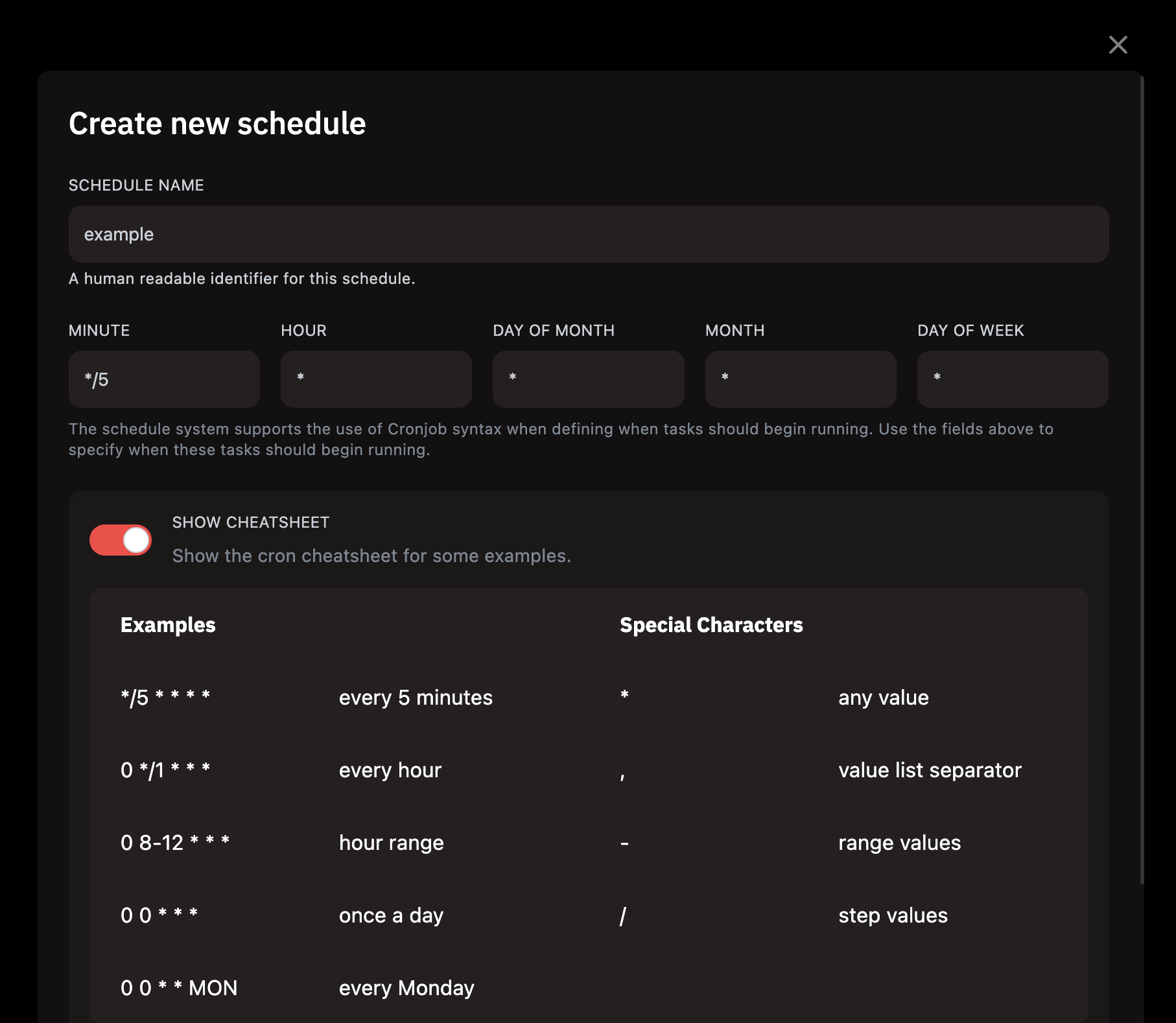
The Create schedule button opens a form for a new schedule. Fill in the name, Cron expression and the ONLY WHEN SERVER IS ONLINE toggle.
Create new schedule modal – Schedule Name field: example. Cron fields: */5, *, *, *, *. SHOW CHEATSHEET toggle ON. Examples table: */5 * * * * = every 5 minutes, 0 */1 * * * = every hour, 0 8-12 * * * = hour range, 0 0 * * * = once a day, 0 0 * * MON = every Monday. Special characters: * any, , separator, - range, / step.
Create new schedule: form with Cron expression */5 (every 5 minutes) and a cheatsheet of Cron syntax examples
Cron cheatsheet
Expression
Description
*/5 * * * *
every 5 minutes
0 */1 * * *
every hour
0 8-12 * * *
hourly 8am–12pm
0 0 * * *
once a day
0 0 * * MON
every Monday
💡 Tip:The ONLY WHEN SERVER IS ONLINE toggle (bottom of form) prevents the schedule from running if the server is offline – ideal for console commands.
Task types in a schedule
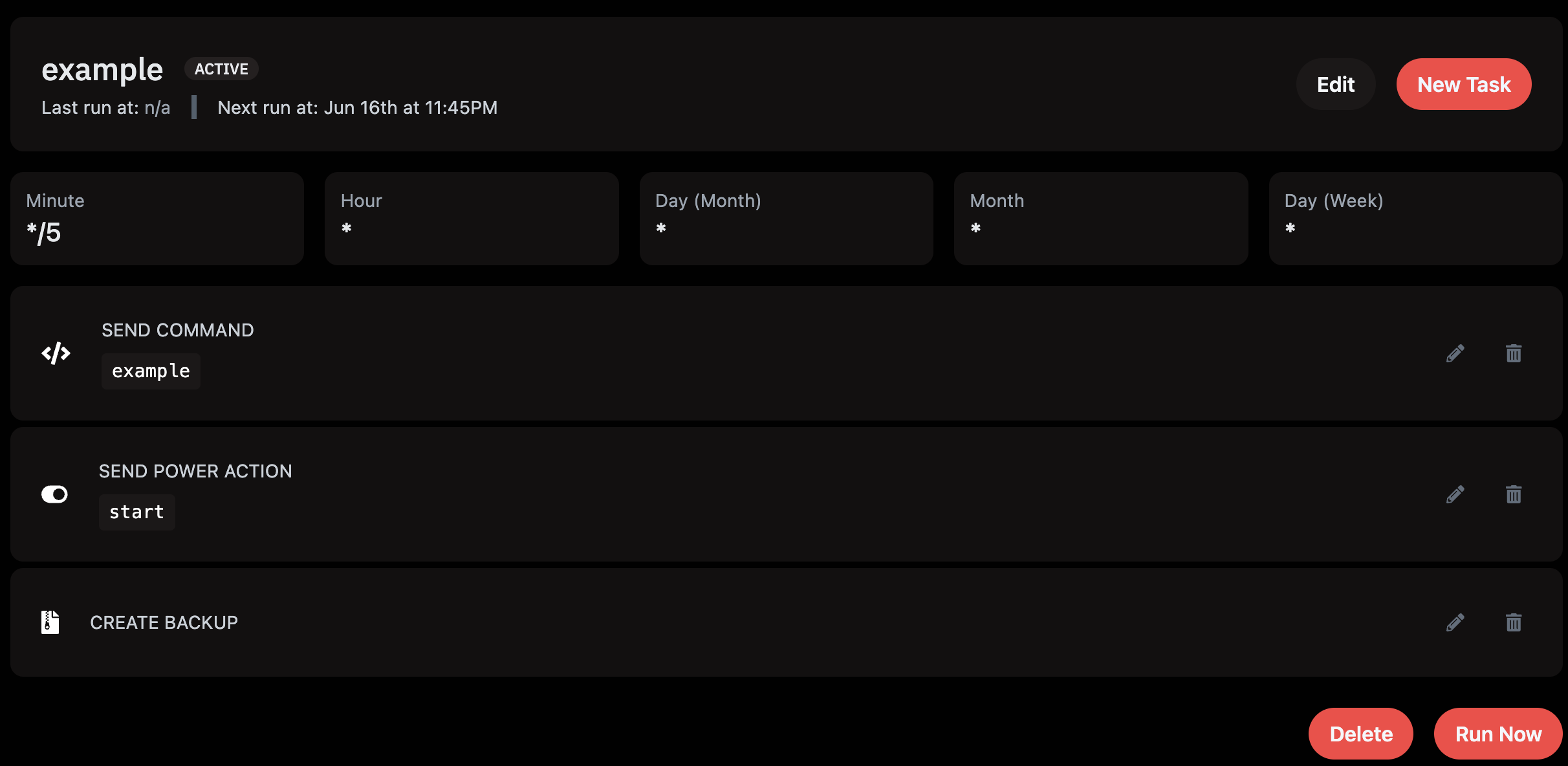
Each schedule can contain multiple tasks that run in sequence. The schedule detail shows all added tasks with their types and parameters.
Schedule detail for example – status ACTIVE, Cron: Minute */5, Hour *, Day(Month) *, Month *, Day(Week) *. Next run: Jun 16th at 11:45PM. Three tasks: SEND COMMAND with command example, SEND POWER ACTION start, CREATE BACKUP. Edit, New Task, Delete, Run Now buttons.
Schedule detail: three tasks in order – Send Command, Power Action (start) and Create Backup. Run Now button executes the schedule immediately.
Send CommandSends a command to the server console (e.g. restart chat).
Send Power ActionStarts, stops or restarts the server – values: start / stop / restart / kill.
Create BackupAutomatically creates a server file backup stored in the Backups tab.
Users
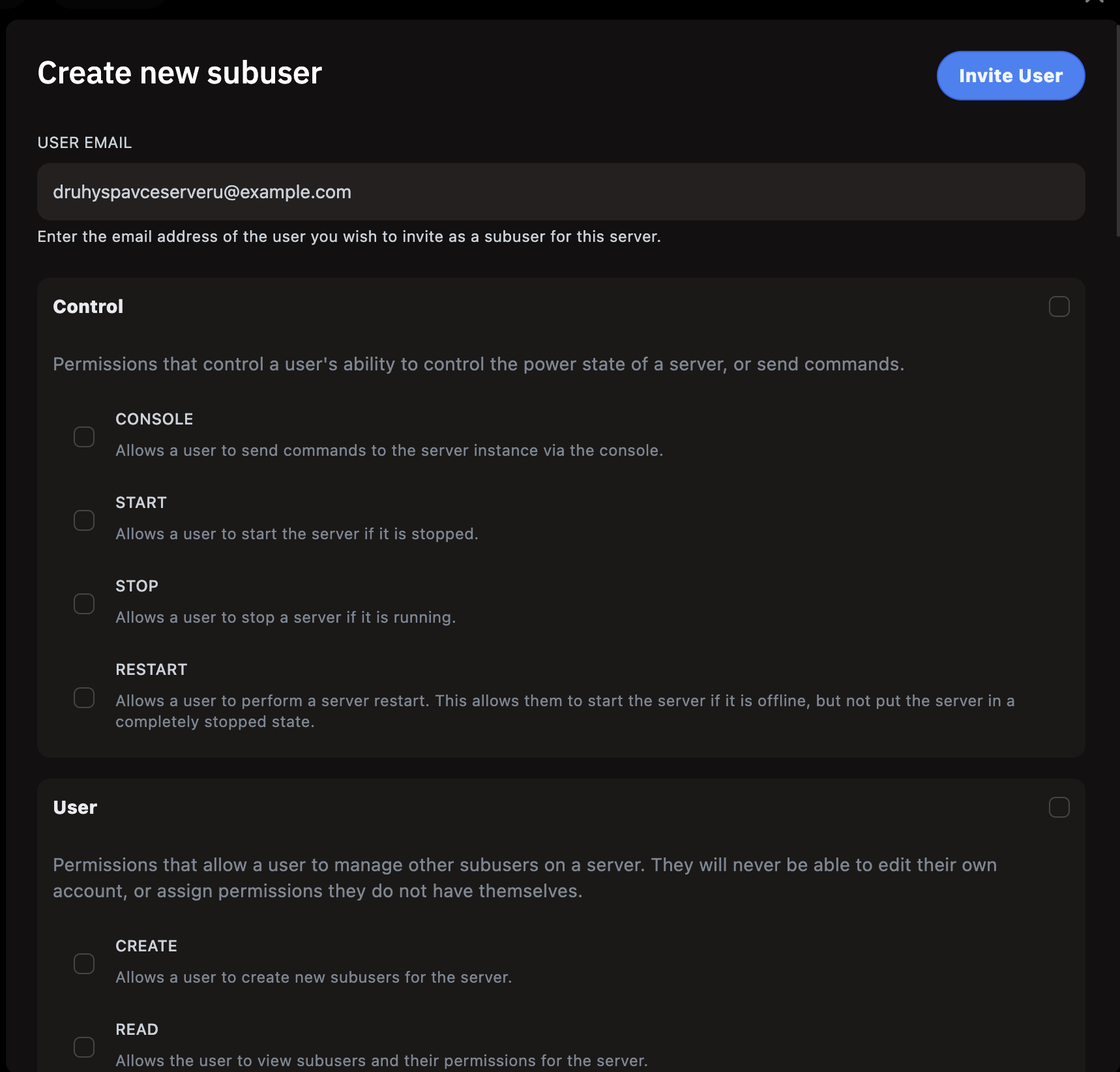
Subuser management – add another server administrator with limited or full permissions. The subuser logs in with their own BlazeHost account.
Create new subuser modal – USER EMAIL field: [email protected]. Control section: toggles CONSOLE, START, STOP, RESTART (all unchecked). User section: toggles CREATE, READ.
Create new subuser: enter email and granular permission assignment – Control (server control), User (user management) and more groups
ControlConsole, Start, Stop, Restart – permission to control the server.
FileReading, writing, deleting, archiving files.
Database / BackupAccess to databases or managing backups.
SettingsAccess to server settings, renaming, reinstalling.
ℹ️ Info:The subuser receives an invitation email. They must have an active BlazeHost account (or create one) with the entered email address.
Backups
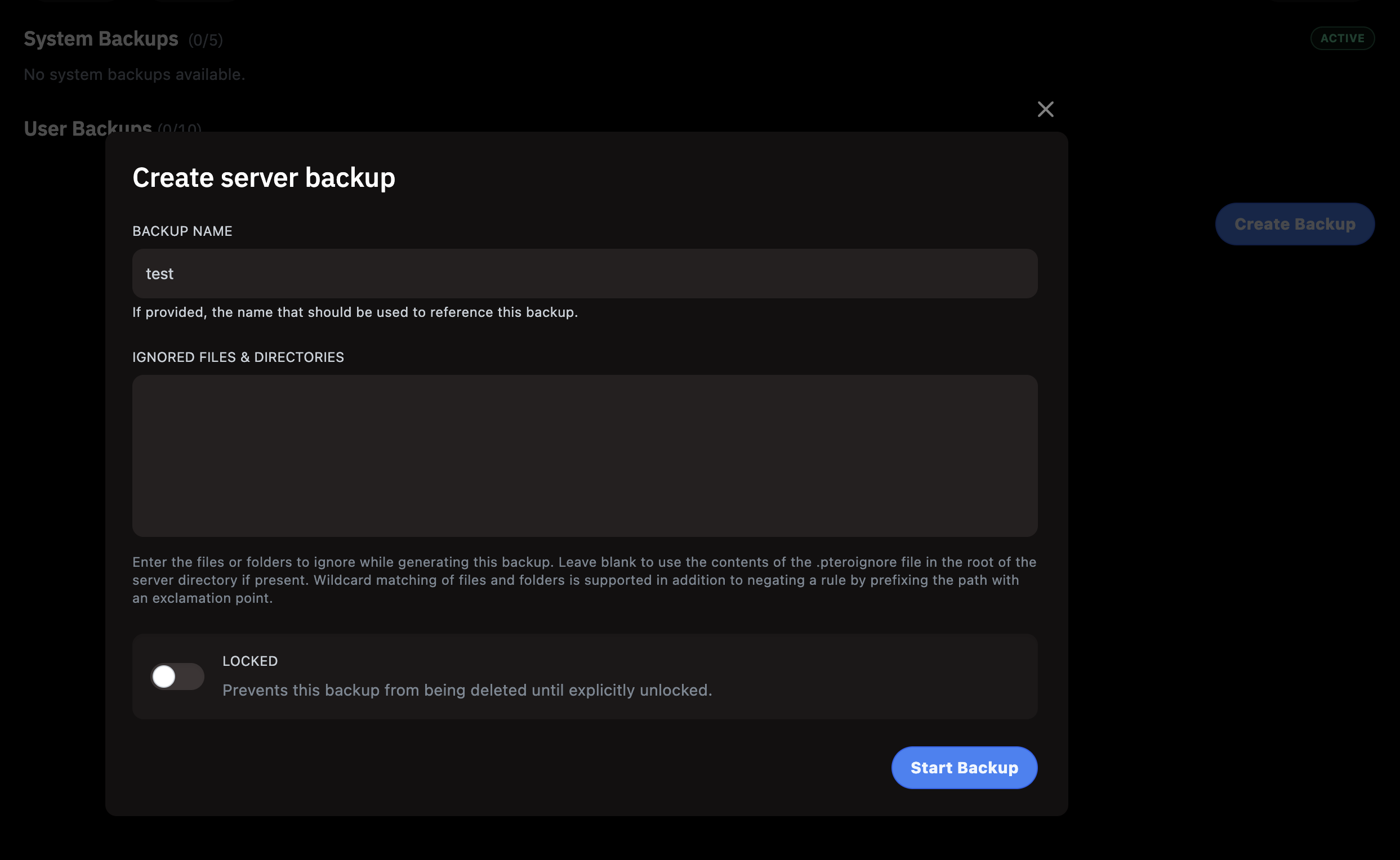
Server file backups (not the database). Each server has a limit of 10 user backups and 5 system backups. Backups are compressed.
Create server backup modal – BACKUP NAME field: test, empty IGNORED FILES & DIRECTORIES field, LOCKED toggle (off) with description: Prevents this backup from being deleted until explicitly unlocked. Start Backup button. Background shows System Backups (0/5) ACTIVE and User Backups (0/10) sections.
Create server backup: backup name, ignored files field and Locked toggle to protect the backup from deletion
Backup NameBackup description – helps identify it later (e.g. Before reinstall).
Ignored FilesFiles or folders excluded from the backup – each line is one pattern (e.g. logs/).
LockedA locked backup cannot be deleted until manually unlocked. Ideal for key backups.
Restore backupClick the three dots next to a backup → Restore. Server must be stopped.
Network
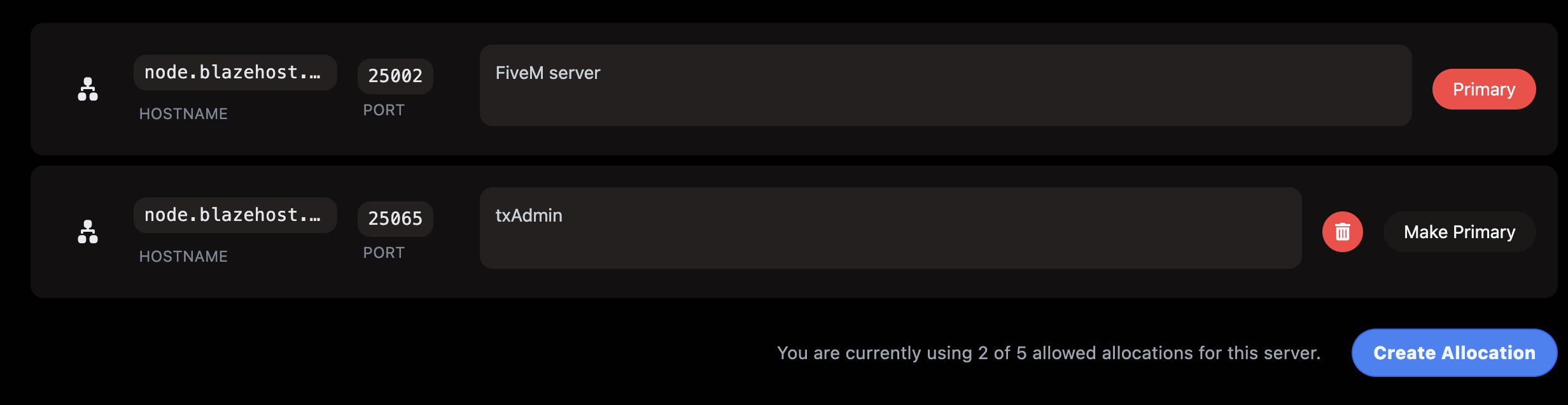
Management of ports (allocations) assigned to the server. Each server can have up to 5 allocations. The primary allocation is the FiveM server port, the second port is used for txAdmin.
Network tab – two allocations: 1) node.blazehost... port 25002, label FiveM server, PRIMARY badge. 2) node.blazehost... port 25065, label txAdmin, Make Primary and red delete buttons. Text: You are currently using 2 of 5 allowed allocations for this server. Create Allocation button.
Network: primary port 25002 (FiveM server) and secondary port 25065 (txAdmin) – 2 of 5 allowed allocations used
Primary portThe port marked PRIMARY is the default FiveM port players connect to (e.g. 25002). Cannot be deleted.
txAdmin portThe second added port (e.g. 25065) is for the txAdmin web interface. In the Startup tab set this port in the TXADMIN PORT field.
Create AllocationAdds a new port from the shared pool. The port number is assigned automatically by the system.
Port labelClick the pencil icon next to a port to add a label (e.g. FiveM server or txAdmin) for clarity.
Startup
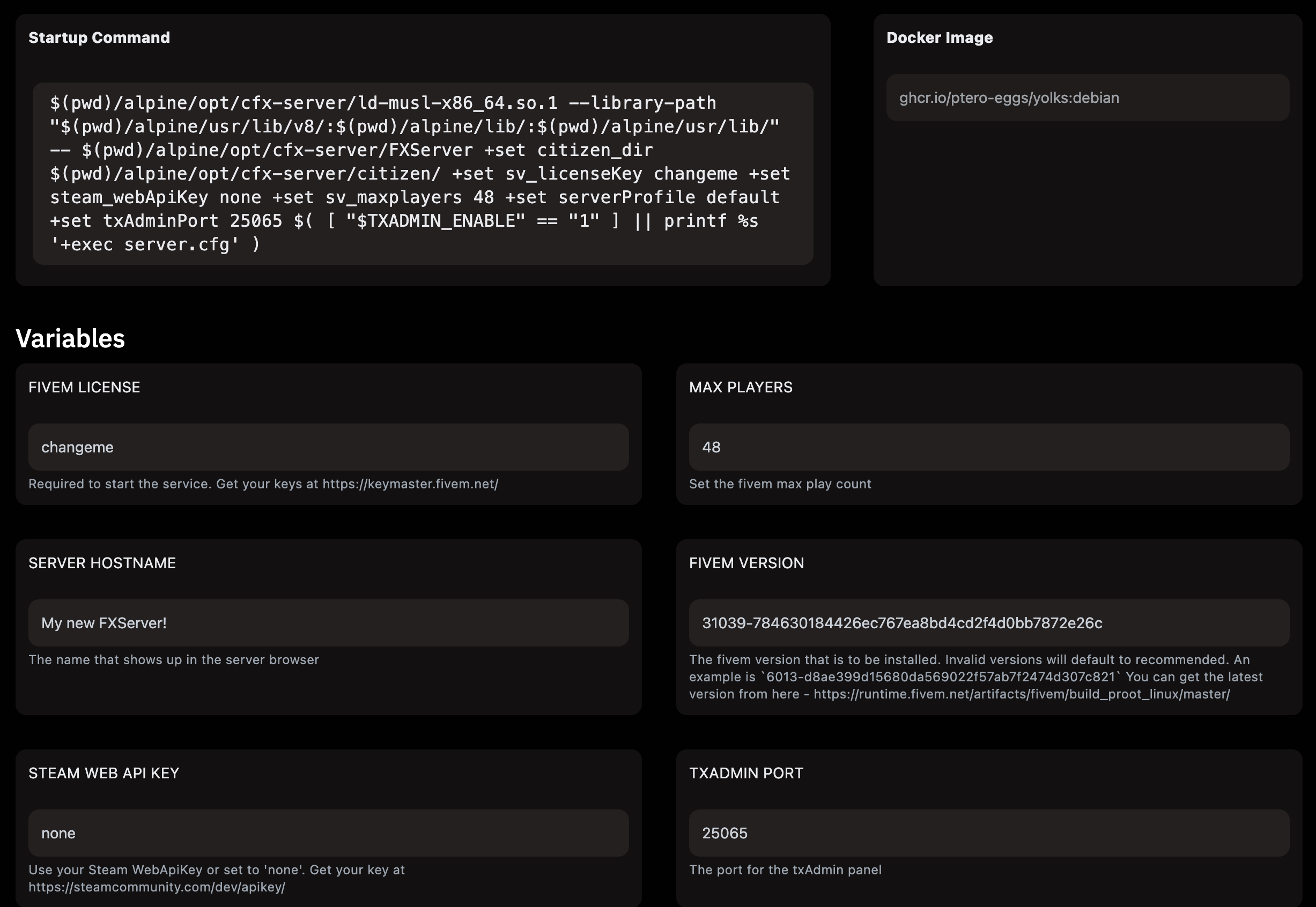
Server environment variable configuration – license, player count, FiveM version and txAdmin port. Changes take effect on next restart (or reinstall for FIVEM VERSION).
Startup tab – at the top Startup Command and Docker Image (ghcr.io/ptero-eggs/yolks:debian). Variables section: FIVEM LICENSE (changeme), MAX PLAYERS (48), SERVER HOSTNAME (My new FXServer!), FIVEM VERSION (31039-784630184426ec767ea8bd4cd2f4d0bb7872e26c), STEAM WEB API KEY (none), TXADMIN PORT (25065).
Startup: environment variables – FIVEM VERSION contains the full build identifier (hash), TXADMIN PORT must match the assigned allocation
FIVEM LICENSELicense key from portal.cfx.re. Without a valid key the server won't start.
MAX PLAYERSMaximum player count – also affects server performance.
SERVER HOSTNAMEServer name displayed in the FiveM server browser.
FIVEM VERSIONArtifact identifier in the format NUMBER-HASH (e.g. 31039-784630...e26c). How to obtain it – see the FiveM artifact version guide.
TXADMIN PORTtxAdmin web interface port – must match the second allocation in the Network tab (e.g. 25065).
Settings
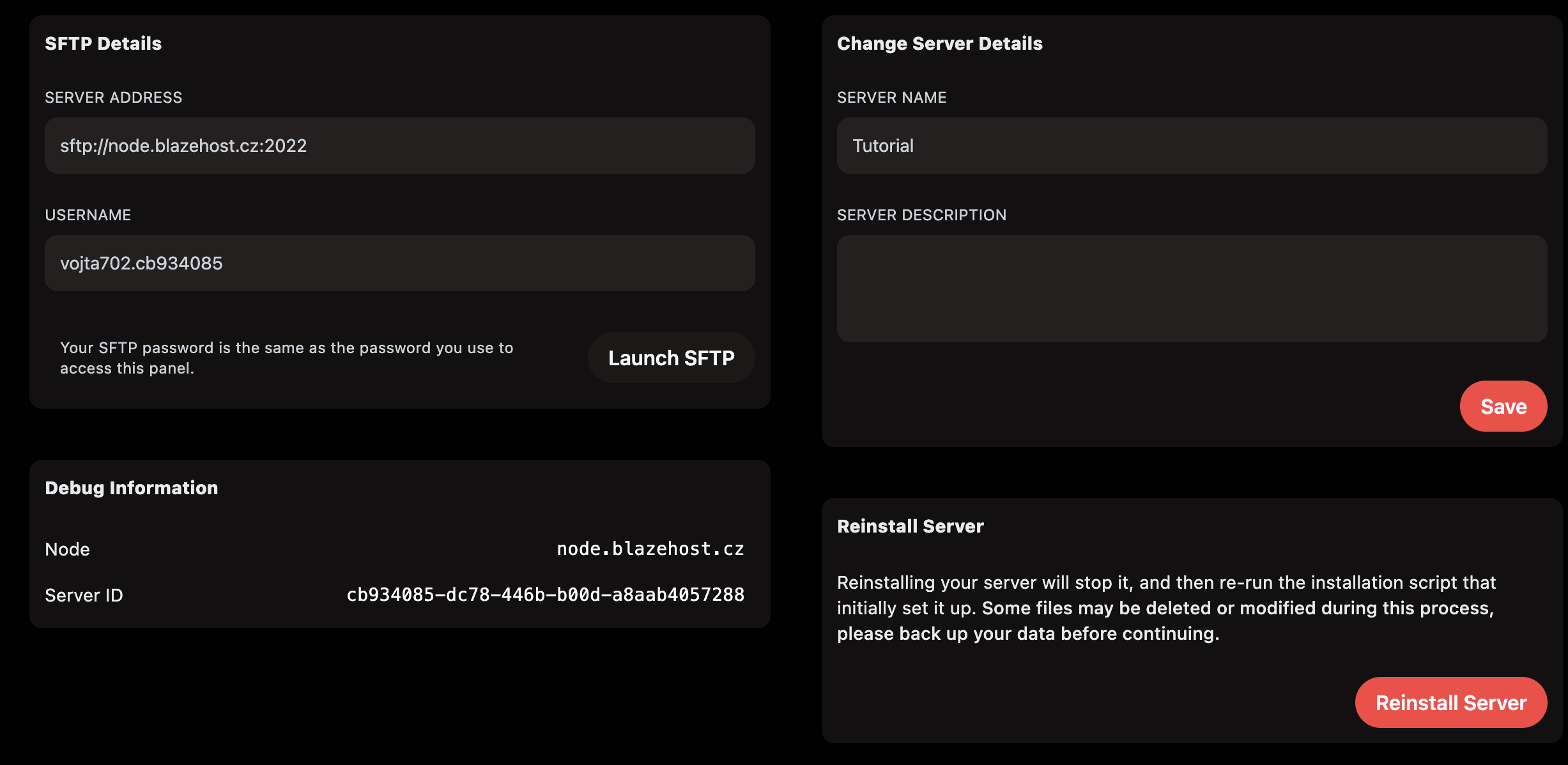
Server settings – SFTP access, server rename, Debug Information and the Reinstall Server section.
Settings tab – left: SFTP Details (SERVER ADDRESS sftp://node.blazehost.cz:2022, USERNAME vojta702.cb934085, Launch SFTP button). Center: Change Server Details (SERVER NAME Tutorial, empty SERVER DESCRIPTION, Save button). Debug Information (Node node.blazehost.cz, Server ID cb934085-dc78-446b-b00d-a8aab4057288). Bottom right: Reinstall Server section with red Reinstall Server button.
Settings: SFTP credentials, server rename (name Tutorial), Debug Information with Server ID and Reinstall Server section
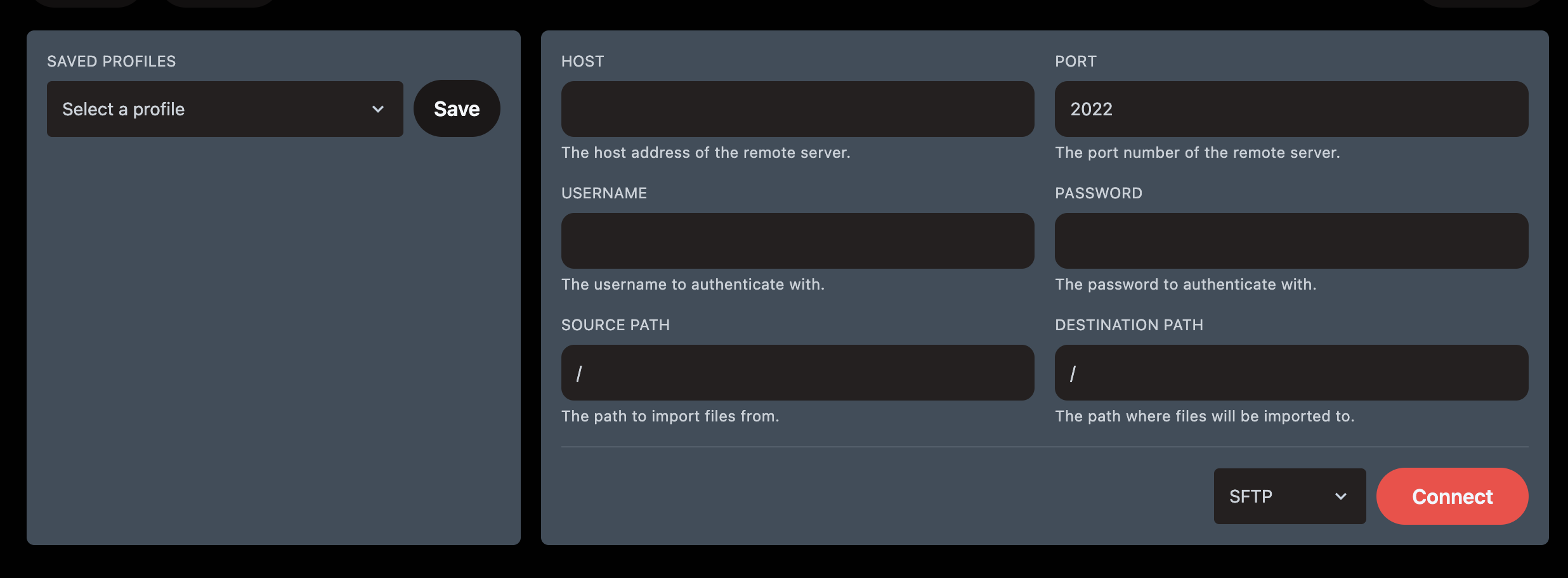
SFTP DetailsAddress: sftp://node.blazehost.cz:2022. Username: vojta702.cb934085. Password is the same as the panel login password.
Launch SFTPOpens an SFTP client directly in the browser. For connection enter host, port 2022, username and panel password.
Change Server DetailsRename the server and optional description – cosmetic only, no effect on operation.
Debug InformationNode (node.blazehost.cz) and Server ID (cb934085-...) – include these when contacting support.
Reinstall ServerRuns the server file reinstallation. See the FiveM server reinstall guide or FiveM artifact version guide.
Launch SFTP: built-in browser SFTP client – port 2022, password same as Pterodactyl panel login
Activity
Log of all actions performed in the panel – who changed what and when. Used for auditing and tracing the cause of issues.
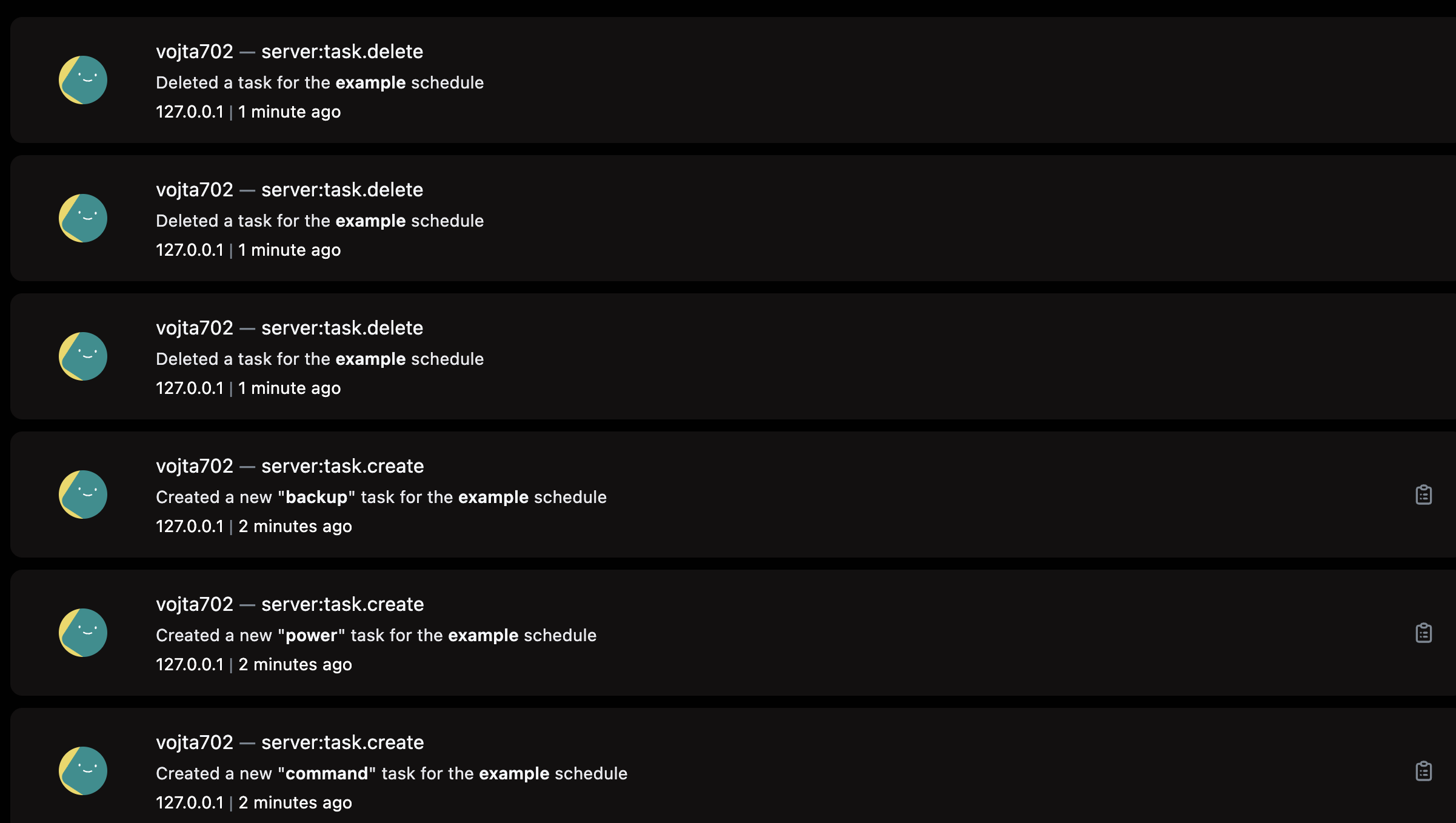
Activity tab – list of actions: vojta702 → server:task.delete (3×, deleted tasks from example schedule), vojta702 → server:task.create backup (created backup task), vojta702 → server:task.create power (created power action), vojta702 → server:task.create command (created command task). All actions from IP 127.0.0.1, 1–2 minutes ago.
Activity: action log – vojta702 added and removed tasks (command, power, backup) for the example schedule, all from IP 127.0.0.1
Log entry formatEach entry contains: user → action_type (description), IP address and timestamp.
Action typesserver:task.create, server:task.delete, server:file.read, server:power (start/stop/restart) and more.
IP addressIP 127.0.0.1 means action performed via the panel locally on the server. Other IPs are logins from external devices.
Account
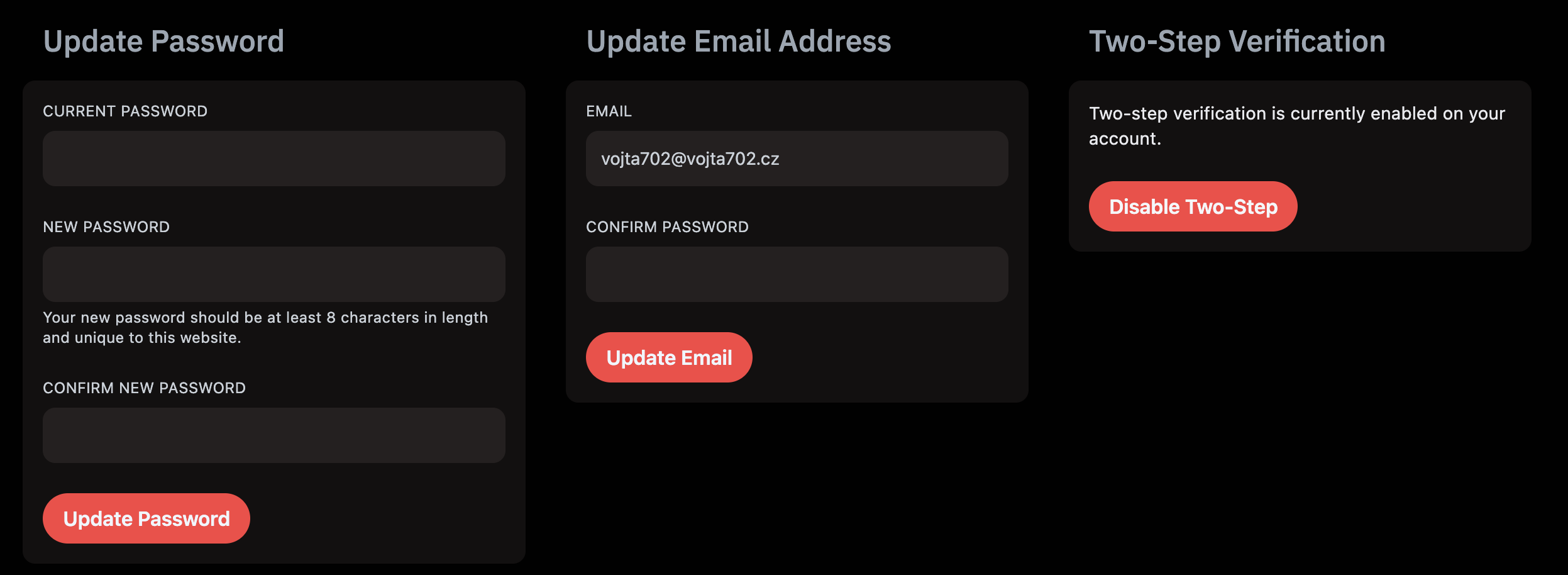
Personal account settings are accessible via the avatar icon top right → Account. Here you change your password, email, manage two-factor authentication and API keys.